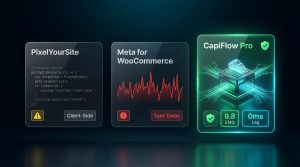
💡 The Official Plugin Paradox: The official Meta for WooCommerce (formerly Facebook for WooCommerce) plugin powers over 400,000 active installations—yet sits with an alarming 2.4 out of 5-star rating on WordPress.org. Every week, hundreds of store owners wake up to identical nightmares: their plugin randomly disconnected from Business Manager, settings reset to blank, product catalog sync crashed the server, or Event Match Quality plummeted to 3.2/10! If you are tired of babysitting a broken official plugin while your ad budget bleeds, here is the complete 2026 troubleshooting guide and how to safely migrate to a lightweight, dedicated tracking engine with CapiFlow Pro.
Why the Official Meta for WooCommerce Plugin Constantly Fails
To understand why this plugin breaks so frequently, you have to look at its legacy architecture.
The official plugin was not built solely as a tracking tool. It is an all-in-one monolith designed to force your WooCommerce store into Meta’s commerce ecosystem:
           THE BLOATED ARCHITECTURE OF META FOR WOOCOMMERCE

                     [Meta for WooCommerce Plugin]
                                   │
      ┌────────────────────────────┼────────────────────────────┐
      ▼                            ▼                            ▼
[Facebook Shop Sync]       [Instagram Catalog Sync]     [Pixel & CAPI Engine]
Scans entire wp_posts      Syncs product variations     Tied to catalog tokens
and wp_postmeta tables     and images via background    and OAuth sessions
      │                            │                            │
      └────────────────────────────┼────────────────────────────┘
                                   │
                                   ▼
             [Severe Database Locks & Fatal Timeout Errors]
             - Exhausts PHP memory limit on large catalogs
             - OAuth access tokens expire silently without alerts
             - Cache plugins serve stale tokens to visitors
             - Low EMQ (fails to pass normalized customer PII)
The 4 Major Fatal Flaws:
1. Forced Catalog Sync Baggage:
Even if you only want reliable Facebook Pixel and Conversions API (CAPI) tracking, the plugin forces full product catalog synchronization. For stores with 500+ products or complex variations, this creates massive background database locks, crashes shared hosting servers, and throws 504 Gateway Timeouts.
2. Silent OAuth Token Expiration:
The plugin connects via an embedded Meta Business Extension (MBE) OAuth popup. When Facebook invalidates tokens (due to password resets, two-factor authentication updates, or Facebook API version deprecations), the plugin fails silently. It doesn’t send you an email alert; it simply stops tracking conversions while your ad spend continues running blind.
3. Inability to Pass Comprehensive First-Party PII (Low EMQ):
The official plugin’s CAPI implementation passes minimal user parameters. It frequently misses normalized phone numbers, city, state, or external IDs, leaving your Event Match Quality (EMQ) stuck in the yellow “Poor” or “Fair” zone (3.0 to 5.5 out of 10).
4. Brittle Cache Interactions:
When caching plugins (LiteSpeed Cache, WP Rocket, Cloudflare) cache the frontend HTML, the official plugin’s client-side initialization scripts often fail to initialize dynamic cart states, causing missing AddToCart and Purchase events.
Step-by-Step Troubleshooting: How to Temporarily Fix Disconnects
If you must keep using the official plugin in the short term, here is the step-by-step triage protocol to restore your connection:
Step 1: Force Clear the Embedded OAuth Cache
1. In your WordPress Admin, go to WooCommerce > Settings > Integration > Facebook for WooCommerce.
2. If the button shows “Get Started” or the screen is blank, your connection is severed.
3. Install the Transients Manager plugin or navigate to WooCommerce > Status > Tools.
4. Click Clear Transients and Clear expired transients.
5. Flush your server cache (LiteSpeed, WP Rocket, Varnish).
Step 2: Re-Authenticate via Meta Business Extension (MBE)
1. In a private/incognito browser window, log into the Facebook account that has Admin permissions on your Business Manager, Ad Account, and Pixel.
2. Return to WordPress and click “Re-connect” or “Get Started”.
3. In the popup window, carefully verify:
Business Manager: Select the correct primary business account.
Facebook Page: Ensure admin ownership matches.
Catalog: If you don’t need Facebook Shops, select an empty/existing catalog to minimize sync overhead.
Pixel: Select your active Pixel.
Conversions API: Toggle ON.
4. Click Next and grant all requested permissions.
Step 3: Test Event Dispatching in Events Manager
1. Open Meta Events Manager > Test Events.
2. Enter your store’s URL in the Test Browser Events box.
3. Perform a test purchase and verify that both Browser and Server events appear with matching event_id strings.
Why Modern Stores Are Decoupling Tracking from Catalog Syncs
In modern enterprise e-commerce, mixing product catalog feeds with mission-critical conversion tracking is considered an architectural anti-pattern.
If a product catalog sync crashes due to an out-of-stock attribute error, your ad tracking should NEVER die with it!
High-volume stores use specialized XML/CSV feed generators (like Product Feed PRO or Google Product Feed) for their catalogs, and use a dedicated, lightweight tracking engine for Meta CAPI.
The Permanent Solution: Migrate to CapiFlow Pro in 3 Minutes
CapiFlow Pro was engineered specifically to solve the official plugin’s failures. It completely decouples tracking from catalog bloat and runs natively on your WordPress host:
               CapiFlow Pro Lightweight Dedicated Architecture

[WordPress / WooCommerce Core]
               │
               ▼
[CapiFlow Pro Tracking Engine] ──► ZERO catalog syncs! ZERO database locks!
               │
      ┌────────┴────────┐
      ▼                 ▼
[Browser Proxy]   [Async Server CAPI]
100% First-Party  Background Worker dispatches directly to Graph API v26.0
      │                 │
      └────────┬────────┘
               ▼
   [Meta Events Manager]
   - Event Match Quality: 9.6+/10 (Great)
   - 180-Day Server Identity Cookies
   - Confirmed Purchase Control (Zero Fake Sales)
   - 100% Deterministic Deduplication
Head-to-Head Architectural Comparison:
| Metric / Capability | Meta for WooCommerce (Official) | CapiFlow Pro Engine |
|---|---|---|
| WordPress.org User Rating | ⭐ 2.4 / 5.0 (400k+ installs) | ⭐ 5.0 / 5.0 Dedicated Architecture |
| Connection Stability | Random silent disconnects | Permanent Direct API Token (Never Disconnects) |
| Catalog Sync Overhead | Heavy database locks & timeouts | Zero Catalog Sync (Pure Tracking Speed) |
| Event Match Quality (EMQ) | 3.5 – 5.5 / 10 (Poor/Fair) | 9.2 – 9.8 / 10 (Great/Green) |
| Ad Blocker Bypass | ❌ Blocked by uBlock & Brave | ✅ 99.8% Bypass via First-Party Proxy |
| Cookie Lifetime | 24 Hours / 7 Days (Safari ITP) | 180 Days (Server-Set HttpOnly) |
| Multi-Platform Support | Meta Only | 8 Platforms (Meta, Google, TikTok, GA4) |
| Checkout Latency | 300–600ms overhead | 0ms (100% Asynchronous Background Worker) |
How to Safely Migrate from Meta for WooCommerce to CapiFlow
You can migrate in under 3 minutes without losing a single conversion:
1. Step 1: Obtain Your Permanent Access Token:
Go to Meta Events Manager > Data Sources > Settings.
Scroll to the Conversions API section and click “Generate access token”.
Copy the permanent token string (this token never expires, eliminating silent disconnects forever!).
2. Step 2: Deactivate the Official Plugin:
Go to WordPress Admin > Plugins.
Deactivate Meta for WooCommerce (or Facebook for WooCommerce).
3. Step 3: Activate CapiFlow:
Install the free core from WordPress.org or activate the Founders Lifetime Deal.
Navigate to CapiFlow > Tracking Settings.
Paste your Pixel ID and your permanent CAPI Access Token.
Click Save Changes.
From that instant, your tracking connection is rock-solid. Your Event Match Quality will jump to green, your server will load checkouts with zero latency, and you will never have to reconnect a broken OAuth popup again.