💡 Quick Summary (The 3-Minute Setup): You do NOT need Google Tag Manager (GTM), a Server GTM container (sGTM), or a monthly Stape.io subscription to implement the Meta Conversions API (CAPI) on WooCommerce. In 2026, the cleanest, fastest, and most reliable method is using a 100% self-hosted, native WordPress CAPI plugin like CapiFlow (Free on WordPress.org) or CapiFlow Pro. Simply generate a Meta System User Access Token, paste your Pixel ID, and toggle on standard events. Setup takes under 3 minutes, delivers a verified 9.2+ Event Match Quality (EMQ) score, eliminates 0ms checkout lag, and saves you $240 to $1,200/year in cloud server fees.
Why 85% of E-Commerce Merchants Are Abandoning GTM for Meta CAPI in 2026
For years, digital marketing agencies insisted that the only “professional” way to implement server-side tracking was the Google Tag Manager (sGTM) dual-container architecture.
If you have ever attempted that route, you already know the painful reality:
Traditional GTM Setup:
[Browser] ➔ [Web GTM Container] ➔ [DataLayer Variable Mapping] ➔ [Server GTM Container (GCP/Stape)] ➔ [Meta Graph API]
(Fragile: 4 points of failure, DNS CNAME configuration, $20-$100/mo cloud bills)

Modern Self-Hosted Architecture:
[WooCommerce Checkout / Cart] ➔ [CapiFlow Asynchronous PHP Worker] ➔ [Meta Graph API v26.0]
(0ms checkout latency, zero GTM code, 100% server-side deduplication, $0 monthly cloud bills)
The 4 Lethal Traps of the GTM/sGTM Container Route:
1. The “Silent Attribution Killer” (Zero Error Logs): In GTM, if a single comma is missing in a DataLayer variable, or your theme updates and renames an HTML class from .cart-item to .product-row, tracking breaks completely in silence. Your store throws zero error notifications, yet Meta stops receiving server signals, your Event Match Quality (EMQ) plummets to 3.2/10, Meta’s Advantage+ ad algorithm flies blind, and your Cost Per Acquisition (CPA) doubles overnight.
2. The “Request Limit” Escalation Bill: Stape.io or Google Cloud Run charges you per server request. A single visitor browsing 4 products generates 6 to 10 server hits (PageView, ViewContent, AddToCart, Custom Loader, Cookie Keeper). Just 1,500 monthly visitors exhaust free tiers, forcing merchants into $20 to $100+ recurring monthly subscriptions.
3. Double Event Mismatch (Deduplication Failure): Synchronizing event_id between client-side JavaScript tags and server-side HTTP triggers across separate web and server containers requires complex custom JavaScript functions. If they misalign by even 1 millisecond, Meta counts every single purchase twice, completely corrupting your reported ROAS.
4. Checkout Speed Degradation: Misconfigured web GTM client tags frequently hold up the WooCommerce checkout submit button, creating a 1.2 to 2.5-second lag while waiting for external container responses. On mobile, this causes cart abandonment spikes of 15% to 25%.
Below is the complete blueprint to bypass GTM entirely and implement bulletproof server-side tracking directly inside your WordPress server.
Comparison: GTM vs. Stape vs. Native Self-Hosted CAPI
| Feature / Metric | Web & Server GTM (sGTM) | Stape.io Cloud Container | CapiFlow Pro (Self-Hosted) |
|---|---|---|---|
| Setup Time | 4–6 Hours (Dev Required) | 1–2 Hours (Semi-Technical) | 3 Minutes (No Coding) |
| Monthly Cloud Server Cost | $50–$120/mo (GCP App Engine) | $20–$100+/mo (Tier Limits) | $0/mo (Forever Free on WP Server) |
| GTM Container Management | 2 Containers + 25+ Tags | 1 Web Container + sGTM | 0 Containers (Zero GTM Code) |
| Checkout Latency Added | +800ms to +1.8s | +400ms to +900ms | 0ms (Async Background Worker) |
| Event Match Quality (EMQ) | 6.5 – 8.0 (Variable) | 7.5 – 8.8 | 9.2 – 9.8 (Native SHA-256) |
| Safari ITP Cookie Lifespan | 1 to 7 Days (Standard) | 90 Days (Cookie Keeper) | 180 Days (Native HTTP Header) |
| Verified Purchase Control | ❌ Fired on raw submit | ❌ Fired on raw submit | ✅ Gated until order confirmed |
Prerequisites: What You Need from Meta Business Suite (Under 2 Minutes)
Before opening your WordPress admin, you only need two credentials from Meta Events Manager:
1. Your Meta Pixel ID (Dataset ID)
1. Go to Meta Events Manager (business.facebook.com/events_manager2).
2. Select your business account and click on Data Sources on the left menu.
3. Click on your active Pixel / Dataset.
4. Go to Settings and scroll down to the Dataset ID / Pixel ID section. Copy the 15 or 16-digit number (e.g., 1234567890123456).
2. Your Meta System User Access Token (Recommended)
⚠️ Important Best Practice: Never use a temporary 60-day user token generated from the Graph API Explorer. Temporary tokens expire, causing your tracking to silently die after two months. Always generate a permanent System User Token.
1. In Meta Business Settings (business.facebook.com/settings), navigate to Users > System Users.
2. Click Add and create a system user named CapiFlow Tracking with the Admin role.
3. Click Add Assets, select Data Sources > Pixels (Datasets), choose your Pixel, and grant Full Control (Manage Dataset) permissions.
4. Click Generate New Token, select your Pixel, and check the following permissions:
ads_management
event_management
5. Set token expiration to Never / Permanent and click Generate Token.
6. Copy the long token string (starts with EAAG...). Store it securely.
Step-by-Step Guide: Setting Up Meta CAPI Without GTM (3-Minute Walkthrough)
Step 1: Install the Free CapiFlow Core Plugin
1. In your WordPress admin dashboard, navigate to Plugins > Add New.
2. In the search bar, type CapiFlow.
3. Locate CapiFlow – Conversions API (CAPI) Tracking for WooCommerce (developed by capiflow).
4. Click Install Now, then click Activate.
(Alternatively, download the official zip directly from the WordPress.org Plugin Directory).
Step 2: Configure Pixel ID & Access Token
1. In your WordPress sidebar, click on the newly added CapiFlow menu.
2. In the Pixel ID field, paste your 15–16 digit Meta Pixel ID.
3. In the Access Token field, paste your permanent Meta System User Access Token (EAAG...).
4. Toggle the Enable Server-Side CAPI switch to ON.
5. Toggle the Enable Browser Pixel switch to ON (CapiFlow automatically syncs browser and server events using identical event_id strings to guarantee zero duplicate counts).
Step 3: Enable Standard E-Commerce Events
CapiFlow supports all 7 core e-commerce events straight out of the box. Ensure the following standard events are enabled:
✅ PageView: Fires on every customer page visit.
✅ ViewContent: Fires on single product page loads, capturing content_name, content_ids, content_type, and real-time product price.
✅ AddToCart: Fires instantly when an item is added to the cart via AJAX or page reload.
✅ InitiateCheckout: Fires upon entering /checkout/, capturing pre-filled billing info.
✅ Purchase: Dispatches order value, currency (USD, BDT, EUR, GBP), order ID, and full SHA-256 customer matching data.
Click Save Changes.
Step 4: Verify Connection in Real-Time
1. On the CapiFlow settings page, look for the Test Connection button.
2. Click Send Test Event.
3. CapiFlow will execute a non-blocking background cURL handshake to Meta Graph API v26.0 (graph.facebook.com/v26.0/{pixel_id}/events).
4. You will see an instant confirmation badge: ✅ HTTP 200 OK — Events Received by Meta.
How Deterministic Deduplication Works Without GTM Code
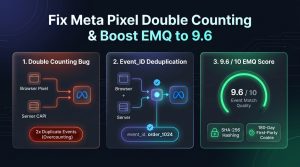
The #1 fear merchants have when running both a Browser Pixel and a Server CAPI simultaneously is double counting:
“If the browser fires a Purchase event for $100, and the server also sends a Purchase event for $100, won’t Meta count that as $200 in revenue?”
In a broken GTM setup, yes. But in a native self-hosted engine like CapiFlow, no.
The Synchronization Architecture:
Customer Submits Order #1052
         │
         ├──► [Browser Pixel Event] ──► Event: Purchase, event_id: "wc_order_1052_987654"
         │
         └──► [Server CAPI Hook]   ──► Event: Purchase, event_id: "wc_order_1052_987654"
                                                          │
                                                          ▼
                                            [Meta Events Manager Engine]
                                            Matching event_id detected!
                                            Deduplication applied: 1 Purchase recorded ($100).
1. Deterministic Unique Key: CapiFlow generates a single cryptographic identifier for each user action (e.g., wc_order_{id}_{timestamp}).
2. Synchronized Payload: The browser JavaScript snippet (fbq('track', 'Purchase', {...}, {eventID: '...'})) and the server payload (event_id: '...') transmit the exact same string.
3. Meta’s Deduplication Window: Meta matches the incoming browser and server events within a 48-hour window. If an ad-blocker destroys the browser event, Meta retains the server event. If both arrive, Meta merges them into a single high-quality signal with 100% accurate ROAS.
How to Maximize Event Match Quality (EMQ) to 9.0+ Without GTM
Meta assigns every Pixel an Event Match Quality (EMQ) score from 1.0 to 10.0 based on how many customer parameters you pass to match the conversion with a real Facebook/Instagram profile.
A score below 6.0 forces Meta’s algorithm to guess who bought your product, dramatically driving up your ad costs.
CapiFlow’s Native 8-Point Customer Matching Normalization:
Without touching any GTM custom javascript, CapiFlow automatically extracts, normalizes, and SHA-256 hashes 8 critical customer data points before transmitting them over SSL:
{
  "user_data": {
    "em": "f660ab912ec121d1b1e928a0bb4bc61b15f5ad44d5efdc4e1c92a25e99b8e44a",
    "ph": "3cb00cb8e225ad75de7361a7a0300ee74b6df0e61d8b67f1396b79c323f4c6e9",
    "fn": "b3da87ee23c7b8e1be0166cb314e38c3539077bc89b88235889ff9e3b6eb4eef",
    "ln": "9e27c1341c59c04a090e9dcf4e1e8b2b737f078a631e5f03761b65e903ad8f0d",
    "ct": "8024ab7f2be88544d67ab0f580327f2913e71d2b7f763ef27c3cf3a0db90cf51",
    "zp": "0123456789abcdef0123456789abcdef0123456789abcdef0123456789abcdef",
    "country": "us",
    "client_ip_address": "198.51.100.42",
    "client_user_agent": "Mozilla/5.0 (iPhone; CPU iPhone OS 17_4...",
    "fbp": "fb.1.1714000000.123456789",
    "fbc": "fb.1.1714000000.IwAR0..."
  }
}
E.164 Phone Normalization: Cleans local formatting (e.g., converting 01711-234567 to international standard +8801711234567) before SHA-256 hashing.
Lowercase Email Trimming: Strips whitespace and forces lowercase to guarantee hash consistency.
First-Party _fbc and _fbp Server Cookies: Set via native HTTP headers to bypass Apple Safari ITP 7-day deletion rules, persisting up to 180 days.
Verifying Your Setup in Meta Events Manager
To verify that your server events are delivering with zero errors:
1. Open Meta Events Manager and select your Pixel/Dataset.
2. Navigate to the Test Events tab.
3. In the Confirm your server events are set up correctly box, copy the test code (e.g., TEST12345).
4. Paste this code into the Meta Test Event Code field inside your CapiFlow settings in WordPress and click Save.
5. In another incognito browser window, open your store, add a product to cart, and place a test order.
6. Return to Meta Events Manager. Within 3 seconds, you will see your events populating live:
Event Name       Received From    Event ID                 Deduplication Status
Purchase         Browser, Server  wc_order_1052_987654     Deduplicated ✅
AddToCart        Browser, Server  cf_atc_89234812          Deduplicated ✅
PageView         Browser, Server  cf_pv_78129031           Deduplicated ✅
Notice the Server icon next to each event. This confirms that your WordPress server is communicating directly with Meta’s Graph API without touching Google Tag Manager!
(Remember to delete the test code from your CapiFlow settings once verification is complete).
4 Common Traps to Avoid When Setting Up CAPI
1. Premature Purchase Firing on Fake/COD Orders: Most generic plugins fire Purchase the exact millisecond checkout is submitted. If you sell via Cash on Delivery (COD) or receive fraudulent/test orders, Meta’s algorithm trains itself on fake buyers. Solution: Enable Confirmed Purchase Control in CapiFlow so Purchase only fires when an order is verified or completed.
2. Page Caching Plugins Stripping Cookies: Aggressive caching (LiteSpeed Cache, WP Rocket, Cloudflare APO) can accidentally cache the _fbp cookie of the first visitor and serve it to everyone. CapiFlow sets cookies using uncacheable dynamic REST API response headers to remain 100% cache-safe.
3. Synchronous AJAX Cart Blocking: Ensure your CAPI plugin dispatches events asynchronously. If a plugin executes a blocking cURL request inside the WooCommerce cart AJAX hook, mobile shoppers will experience a 1-second freeze every time they click “Add to Cart”. CapiFlow uses Action Scheduler background queues for 0ms frontend latency.
4. Keeping Dead GTM Tags Active: If you previously had Meta tags running inside a GTM container, pause or delete them inside GTM before activating CapiFlow to prevent triple-firing or duplicate event IDs.
Frequently Asked Questions (FAQ)
Do I need a Google Tag Manager container if I use CapiFlow?
No. CapiFlow replaces both the Web GTM container and the Server GTM container for Meta tracking. All browser pixel scripts and server-side Graph API requests are handled directly inside your WordPress installation.
Does setting up CAPI without GTM cost any monthly fees?
Zero. The core CapiFlow plugin is 100% free forever on WordPress.org. It runs natively on your existing WordPress server host, meaning you pay $0/month in third-party cloud hosting, Stape subscriptions, or GCP server bills.
Will switching from GTM to CapiFlow reset my Facebook Pixel learning?
No. Meta’s ad algorithm optimization is tied to your Pixel ID (Dataset ID) and historical conversion data, not your delivery method. As long as you use the same Pixel ID, your learning phase remains 100% intact with zero downtime.
How does CapiFlow bypass ad blockers?
Over 42% of modern web users run ad blockers (uBlock Origin, Brave Shields, AdGuard) that block browser-based connect.facebook.net/en_US/fbevents.js. CapiFlow sends events directly from your server’s backend IP address to graph.facebook.com, which ad blockers cannot see, block, or manipulate.
What is the difference between CapiFlow Free and CapiFlow Pro?
CapiFlow Free provides 100% unlimited Meta Conversions API (CAPI) tracking, deterministic deduplication, and Confirmed Purchase Control. CapiFlow Pro upgrades your setup with 8-Platform Multi-CAPI (Meta, GA4, Google Ads, TikTok, Pinterest, Snapchat, LinkedIn, X), Automated Courier Logistics (Pathao, Steadfast, REDX, DHL), Negative Purchase Signals, and 3-Layer AI Fraud Defense.